

Specialized Samsung Appliance Repair in San Francisco
Mon–Sat: 8:00 AM – 7:00 PM
New router, new network name or a changed password, and your Samsung appliance dropped off the network. Here is how to bring it back from the owner side.
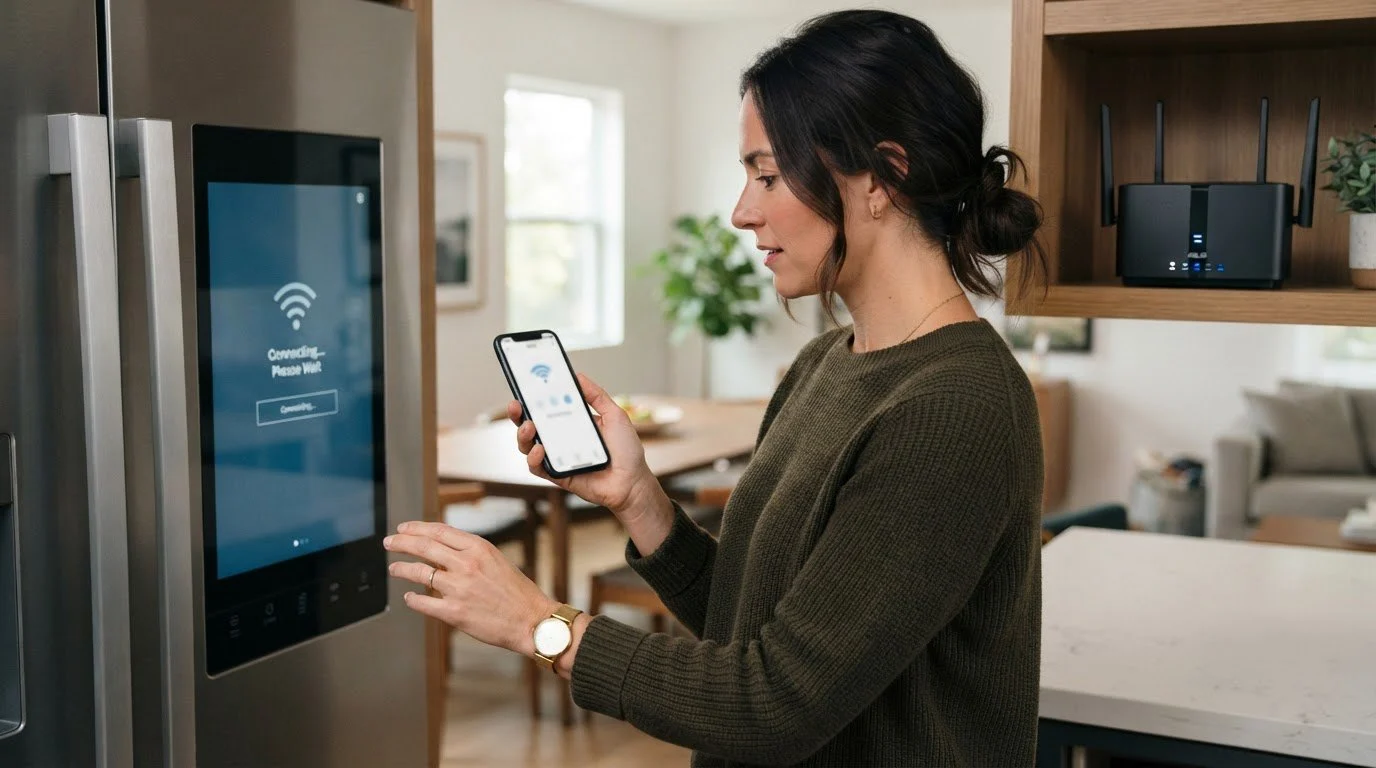
Households swap routers for many reasons: an internet provider upgrade, a move to a mesh system, a new apartment, or a change of Wi-Fi name and password for security. Phones and laptops mostly shrug it off. Appliances usually do not. A Samsung dishwasher, washer or refrigerator stores the network it was set up with, and when that network changes, the appliance has nothing to join. It is not broken. It is simply looking for a network that no longer exists.
An appliance recognizes a network by its name and its password, and sometimes by the radio band as well. If any of the three changed, the old saved entry is useless. A router that kept the name and password but now broadcasts different band settings can also leave an appliance unable to connect. Before you touch the appliance, write down exactly what the new network looks like: the name, the password, and whether the router combines its bands under one name.
A new router may sit somewhere different from the old one. In a San Francisco flat with thick walls, or a Bay Area condo where the laundry closet is across the unit from the living room, the signal that used to reach the appliance may now be weak or gone. Appliances are often in the worst Wi-Fi spots in a home: metal cabinets, tiled walls and concrete floors absorb the signal. Moving the router closer, or adding a mesh node near the kitchen or laundry area, often matters more than anything done to the appliance.
If the appliance is still listed under the old setup and will not rejoin, remove it from the app and add it as a new device. Make a note first of its name and room so you can restore them.
Do not open the appliance to look for a network module. Do not unplug it repeatedly in hopes that it will search harder. A single controlled power reset, turning the appliance off at the unit or the breaker, waiting a short while and restoring power, is acceptable, but more than that does not help. Do not rename your network back and forth while you are trying to connect, because each change gives the appliance a new target to miss.
If the appliance rejoins and works in the app but behaves oddly at its own controls, or if it will not connect on any network you try, including a phone hotspot placed nearby, the fault may be in the appliance’s controller. A hands-on diagnosis is the way to find out. We do not repair connection problems remotely, and we do not promise that a connectivity fault is fixable without inspecting the appliance. If you want to understand more about status issues, read what to check when the app shows online but commands fail.
For a repair, see Samsung dishwasher repair, Samsung washer repair or Samsung dryer repair. We diagnose before repair, give a written estimate, and do nothing without your approval. Have your model number ready when you reach out.
If you know a new router is coming, you can make the switch easier. Where the provider allows it, set the new router to the same network name and password as the old one before it replaces it. Keep a note of your Wi-Fi details near the appliance manual. After the switch, check each connected appliance in the app within a day or so, starting with those farthest from the router, so any that dropped off are caught before you need them.
Sometimes the app keeps showing the appliance under an earlier name or room, with a grey status that never changes. That entry belongs to the old link and will not revive on its own. Remove it, add the appliance fresh, and restore the room and name afterward. Give each step a minute to finish before you move to the next, because a rushed setup is a frequent reason for a second failed attempt.
Phones handle band, security and name changes automatically, while appliances are more limited. They often need the 2.4 GHz band and simple settings.
Often only the network needs updating. If the appliance still will not appear as online after reconnecting, removing and adding it again can refresh the link.
Yes. If your new router uses the same name and password as the old one, many appliances reconnect on their own. If the band settings differ, they may still need help.
Not usually. It is most often a mismatch between the appliance and the new network. Only when it fails on every network, including a nearby phone hotspot, do we suspect the appliance.
Connectivity setup is an owner task. A technician’s visit focuses on diagnosing and repairing the appliance.
Share a few details and we’ll confirm an appointment. Prefer to talk? Call us and we’ll help right away.